 EN
ENZnowz guide Whiteout Survival V4
A straightforward guide to getting started
If you're looking to jump into the Whiteout Survival V4 private server, you're in the right spot. It features the same fundamental gameplay mechanics as the official game, but with a massive jumpstart on progression: you begin with VIP 8, plenty of diamonds, substantial Frost Stars, and instant access to eight generations of powerful heroes from day one. Fresh states are launched regularly, ensuring that everyone gets a fair start without falling behind older, established players.
This guide will walk you through setting everything up in about ten minutes, followed by comprehensive strategies to maximize your starter bonuses, optimize hero investments, and master early-game mechanics. Take a quick look through the setup steps below for your device to get started.
Important Note Before You Begin Whiteout Survival V4 runs on an independent private server and is not affiliated with Century Games. Installing it will not affect your official Whiteout Survival account or game progress. Why Play on a Private Server? Private servers like V4 offer an accelerated progression environment. By eliminating early-game paywalls and giving you high VIP status along with premium currencies right away, you can focus on strategic alliance warfare, hero squad synergy, and city development without waiting months or spending heavily |
Overview of the Process
Getting set up involves three main steps:
1 Download and install the V4 app on your phone (Android or iPhone).
2 Create a V4 account on the website. This gives you a username and password.
3 Open the app and log in with that username and password.
A common issue players run into is opening the app first and trying to register on the login screen. Your account must be created on the website before you log in through the app. Be sure to complete step 2 first.
Key Prerequisites & System Compatibility
Before beginning, verify that your device meets the baseline requirements:
- Android: Android 7.0 or higher, at least 3 GB of free internal storage, and permission to install third-party APKs.
- iOS / iPadOS: iOS 13.0 or higher, minimum 3 GB storage, and Safari enabled for web installation profile handling.
You can use the link below for both the app download and account registration:
DOWNLOAD + SIGN UP |
Part 1: Download the app
Android
Installing on Android requires downloading the APK file directly.
1 Open this link on your phone (Chrome works best):
https://znowz.com/games/whiteout-survival/
2 Tap the Android download button. Your browser may display a standard security prompt regarding files downloaded outside the Google Play Store. Select Download anyway
to proceed.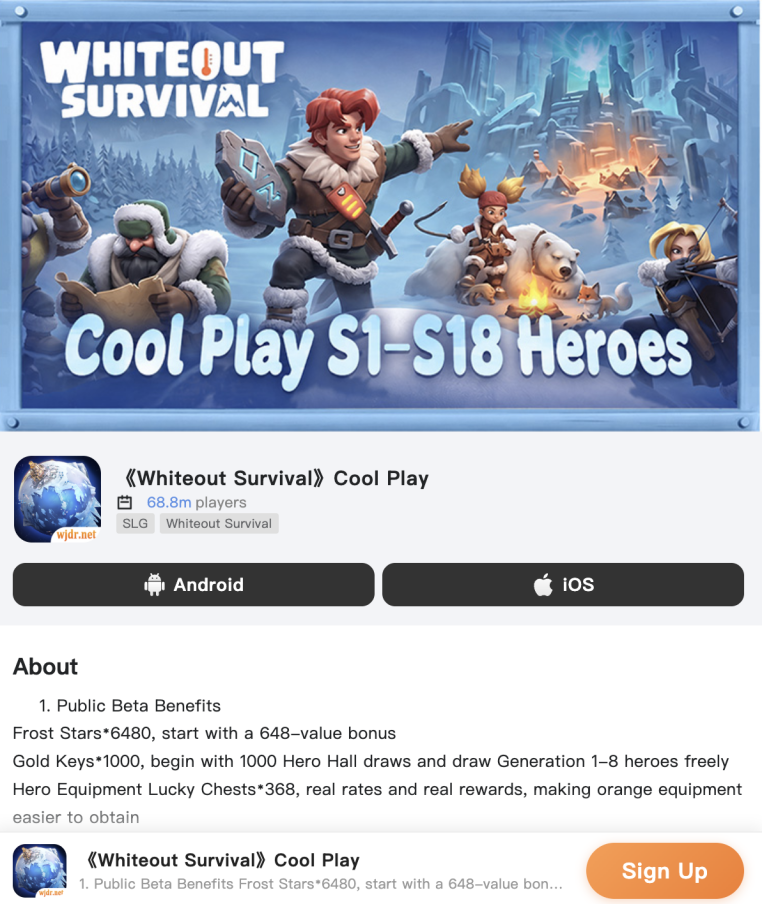
3 When the download completes, tap the notification or locate the file in your Downloads folder to install it.
4 If prompted about installing apps from unknown sources, select Settings, enable Allow from this source, and return to complete the installation.
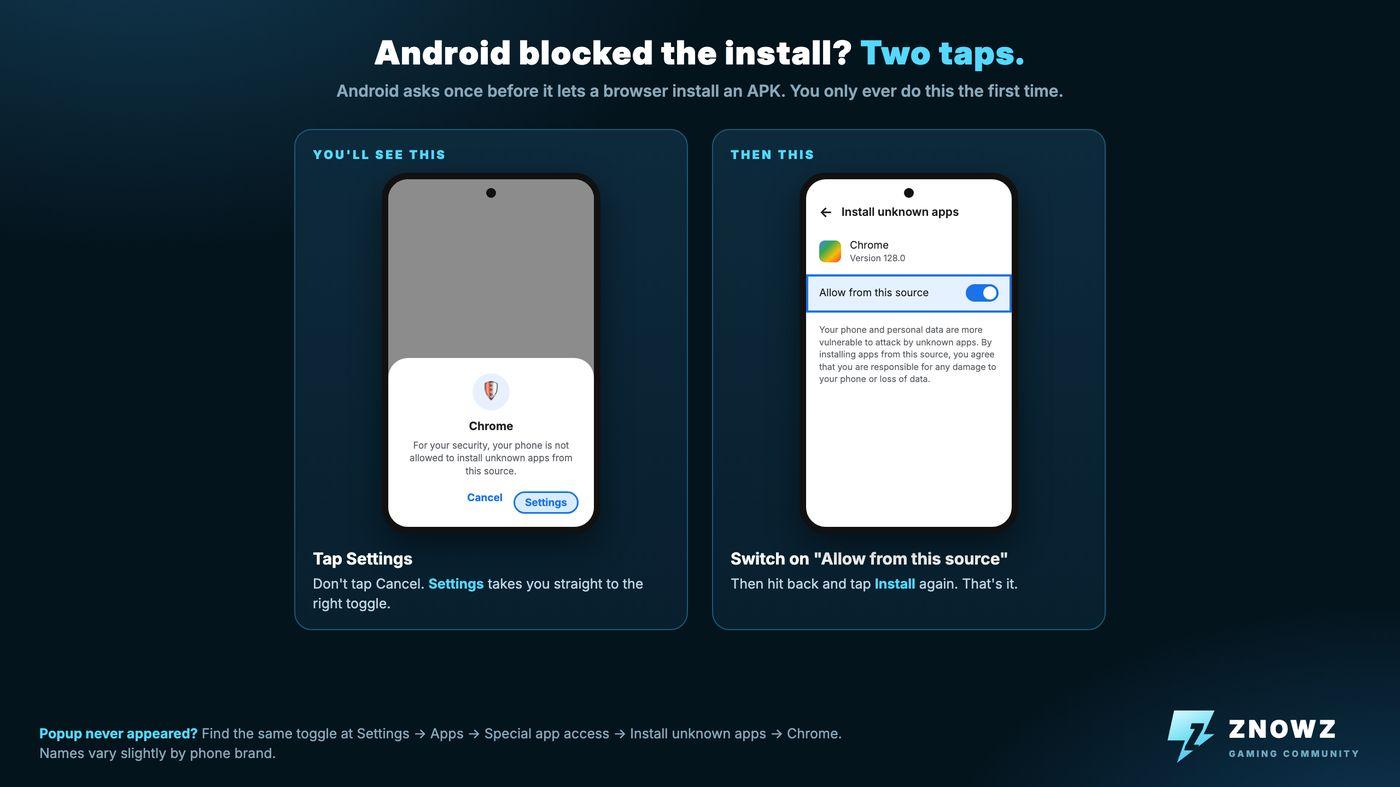
How to enable app installation permissions on Android.
5 Open the app once installed. When you see the login screen, leave it open and proceed to Part 2 to create your account.
iPhone / iPad
iOS installation involves authorizing an enterprise profile through your system settings. Please use Safari to complete these steps.
1 Open this link in Safari:
https://znowz.com/games/whiteout-survival/
2 Follow the prompts on the site. When asked permission to install a profile or app, select Install or Allow.
3 Once the icon appears on your home screen, opening it immediately will display an "Untrusted Enterprise Developer" notice. Follow the steps below to authorize it:
4 Go to Settings → General → VPN & Device Management (or Profiles & Device Management on older iOS versions).
5 Under Enterprise App, tap the developer profile listed there.
6 Tap Trust "[Developer Name]".
7 Confirm by selecting Trust on the popup menu.
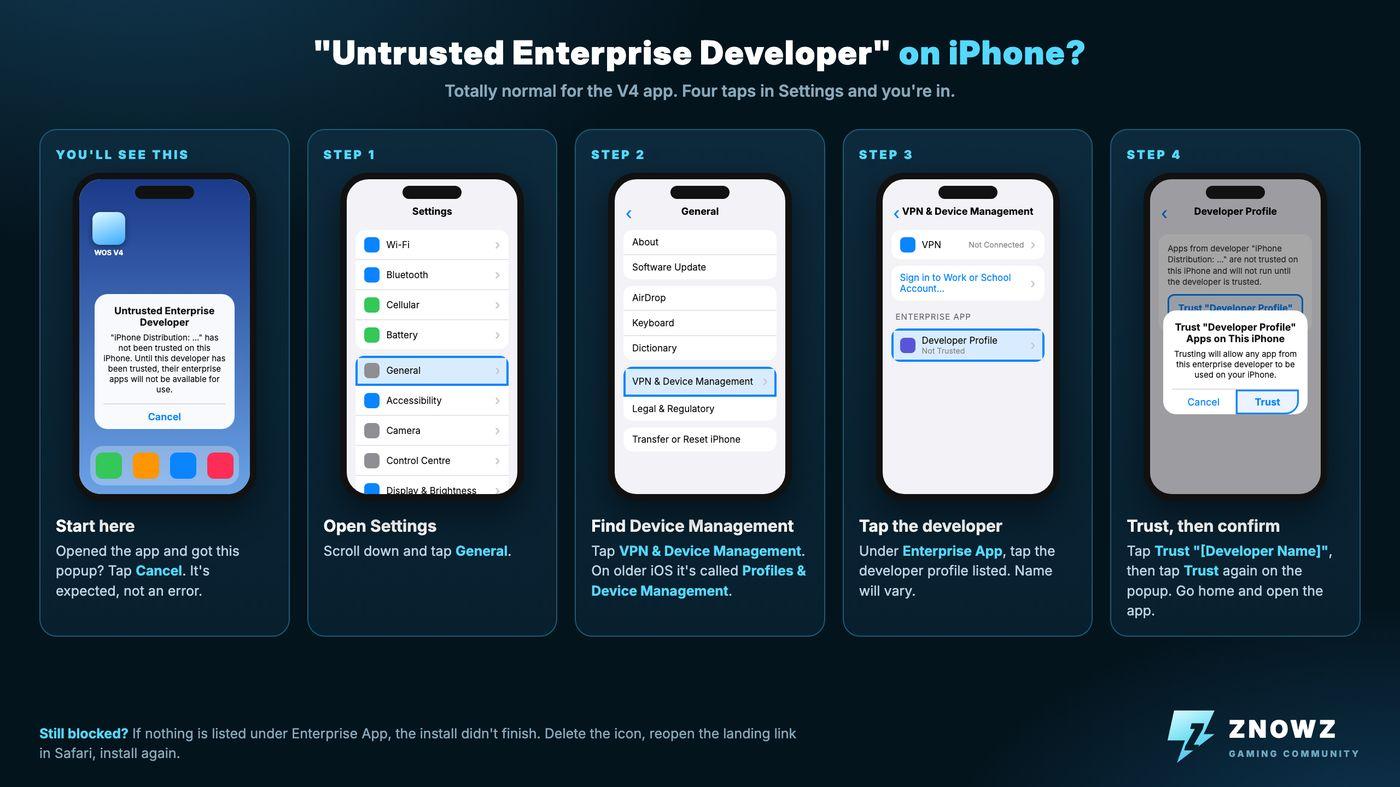
Steps to authorize the developer profile on iOS.
8 Return to your home screen and launch the app. Once on the login screen, continue to Part 2.
If the app icon remains grey or stuck on "Waiting…" This indicates the download was interrupted. Delete the icon, check your connection, and restart the download from step 1. |
Part 2: Create your account
Creating your account takes just a couple of minutes on the registration webpage.
1 Reopen the registration link in your mobile browser:
https://znowz.com/games/whiteout-survival/
2 Scroll down a little and tap Sign Up.
3 Choose a username and password.
- Make sure to record your login details, as automated password recovery is not available.
- Choose credentials you can remember easily.
4 Complete the visual verification by sliding the puzzle piece into place.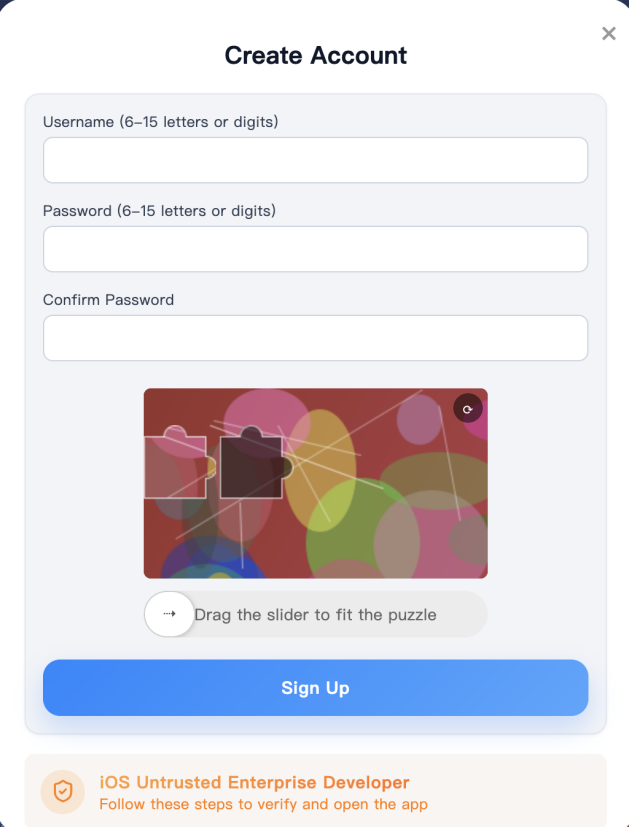
5 Tap Sign Up. A confirmation message will confirm your account is ready.
Account Security Notice Official staff or support members will never ask for your account password. Keep your credentials private at all times. |
Part 3: Log in and play
1 Open the Whiteout Survival V4 app on your phone.
2 Enter your newly created username and password.
3 Tap Login.
Initial setup will take a moment while the app downloads required game assets.
First-Time Boot & Patch Downloads
During your initial launch, the app will download essential game files and high-resolution assets (roughly 1.5 GB to 2 GB). Keep the application open in the foreground on a stable Wi-Fi network to avoid missing files or corrupted installation caches.
Starter Bonuses
New accounts on the V4 server start with the following rewards immediately available:
What you get | How much |
VIP level | VIP 8 |
Diamonds | 180,000 |
Frost Stars | 6,480 |
Hero EXP | 1,000,000 |
Gold Keys | 1,000 |
Heroes | Generations 1 to 8 unlocked |
Cosmetics | Permanent castle skin, march skin, avatar frame and nameplate |
Additional hero generations unlock progressively over time (such as Gen 9 around day 22), providing ongoing content updates.
Understanding Starter Currencies & Features
To make informed choices, it helps to know how each starter bonus functions:
- VIP 8 Privileges: Grants permanent boosts to construction speed, research velocity, march march speed, stamina recovery, and daily free VIP chests containing vital hero shards and speedups.
- 180,000 Diamonds: Use these primarily for VIP level expansion, high-priority lucky wheel events, and key speedup purchases during alliance event windows.
- 6,480 Frost Stars: A premium currency equivalent to direct store top-ups. Save these for high-value growth bundles, battle passes, or special hero recruitment events.
- 1,000 Gold Keys & 1,000,000 Hero EXP: Allows instant recruitment in the Hall of Heroes to rank up core hero star levels and immediately max out your primary march team.
- Permanent Cosmetics: Aside from personal style, permanent skins and avatar frames offer cumulative passive stat bonuses to troop attack, defense, and march capacity.
Redeeming Gift Codes
Navigate to Settings → Gift Code in-game and enter the following active redemption codes:
1000keys 368gearbox dragoncastle cloudbeast dragonframe fireworksplate 6480stars |
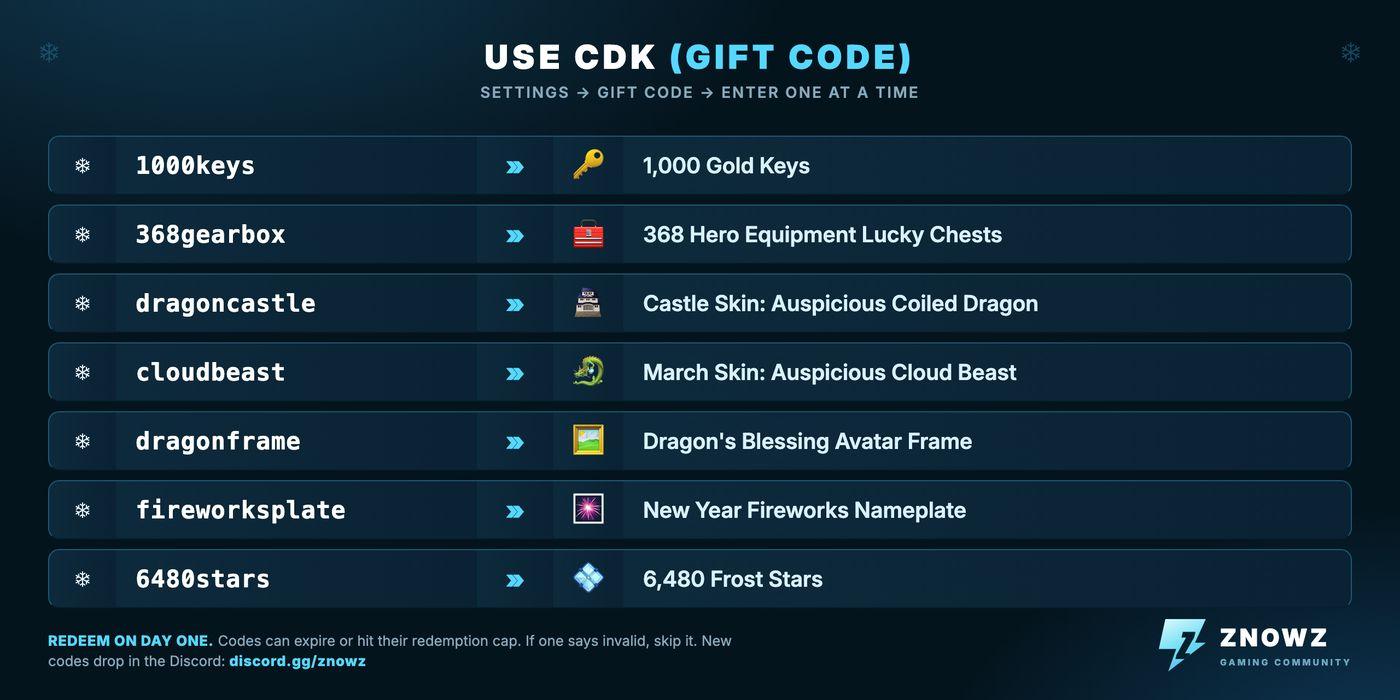
Overview of available gift codes and rewards.
Redeem these codes promptly upon joining, as they may expire or reach usage limits. Updated codes are shared regularly in the official Discord server.
Gift Code Troubleshooting & Expiration
If a gift code fails to work, check for typos or extra whitespace. All codes are case-sensitive. If a code returns "Expired" or "Limit Reached," check the Discord server's announcement channel for fresh replacement codes issued during server maintenance or holiday events.
Next Steps
To make the most of your starter bonuses, check out our companion guide on resource allocation, hero priority, and progression strategies.
NEXT UP Your First Week on V4: Where to Spend Your Head Start (link coming soon) |
Once your account is active and your codes are redeemed, explore the game at your own pace.
Troubleshooting Common Issues
Login credentials not recognized in the app
Verify that you registered an account via the website first (Part 2), as account creation cannot be performed directly within the app interface.
Unable to install APK on Android
Go to Settings → Apps → Special app access → Install unknown apps, select your browser, enable installation permissions, and try again.
"Untrusted Enterprise Developer" prompt on iOS
Navigate to Settings → General → VPN & Device Management to ensure the profile is trusted. If no profile appears, reinstall the app using Safari.
"Unable to install" error on iOS
This occurs when enterprise profiles are updated. Remove the existing app, open the landing link in Safari, and download the latest profile. Account progress is stored server-side and will be preserved.
Verification captcha failing
Try using a different browser (Chrome or Safari), temporarily disable ad-blocking extensions, and align the slider carefully.
Sign Up button missing
This is usually caused by active ad blockers or outdated browser software. Disable content blockers and refresh the page.
App stuck on initial loading screen
Switch between Wi-Fi and mobile data connections to resolve any network stalls during the asset download phase.
Additional Support
Join the community Discord at https://discord.gg/znowz to submit a support ticket. Include your Player ID (found on your in-game profile) and a detailed screenshot or screen recording of the issue. When submitting a ticket, describe your device model, operating system version, and exact error message to speed up resolution. Never share your account password with anyone, including support staff.
Useful links
- Download & sign up (Android & IOS):
- https://znowz.com/games/whiteout-survival/
- Community, guides & support: znowz.com
- Discord: https://discord.gg/znowz